













Zendesk, Freshdesk or a lead form fires one alert; everyone hears the same siren. Team alerts › Hear every sale. Cha-ching for everything.
Shopify, WooCommerce, Stripe or Hotmart: a register rings on your phone, and a bigger order rings a grander bell. Hear every sale › One account, every client's phone. No app to build.
Property, IoT and security integrators: your alarms reach your customers' phones under your name. Client alerts ›
With Vybit the sound itself tells you SPECIFICALLY what the notification means because YOU CREATE OR CHOOSE THE SOUND! Record and import your own sounds or choose from thousands of quality, searchable sounds from freesound.org.
Vybit notifications (a.k.a. vybits or vybs (VIBES) for short) can be triggered in a multitude of ways including preset times, entering/exiting specified areas, or seamlessly with automation platforms like IFTTT, Zapier, Make and Integrately. Any service with outbound webhooks can easily trigger vybits. DevOps folks can implement Vybit into RMMs or directly curl/wget vybits from closer to the metal. Developers can programatically integrate Vybit into their projects with ease.
Vybits can also be shared, e.g., with your spouse to let him/her know you are on your way home, with your team to alert them that the database server just went kaput, or with your customers to announce a new product release.
 Storm Cell in the Area
- Milk Order Reminder
- Package Delivered to Porch
- It's Someone's Birthday Today
- Webserver #2 is DOWN!
- Time to Pickup the Kids From School
- I Have Left the Neighborhood!
- I Miss You!
- S&P 500 Closed Over 1% Higher Today
Vybit's navigation bar at the bottom of the screen includes links to the four main pages. Each of those pages is described in detail below. Page content can be filtered by keyword using the search bar at the top. Note that clicking the
symbol ANYWHERE in the app will PLAY the sound of the Vybit but will NOT SEND the Vybit.
Page Descriptions:
to play the Vybit sound.
to hear the sound. Click the SUBSCRIBE button to follow the Vybit.
on the right side to remind yourself of the Vybit sound or to show off the excellent sound choice you made to your friends for that Vybit.
to hear the sound. The HIDE button will conveniently remove the sound from view as you narrow down choices. Click the CREATE VYBIT button to create a Vybit using the chosen sound. There are thousands of sounds of every sort from which to choose. Sounds that you record or import (see below for details) are private and only accessible to you. If you want to make your sounds publicly available you can upload them to freesound.org and tag them with a creative-commons license to be able to access them on Vybit. Note that Vybit sounds are limited to 10 second in length.
Vybit settings are organized into four sections including GENERAL, TRIGGER, NOTIFICATION, and SUBSCRIPTION. Click on the section headers to toggle the desired section settings. Here are the descriptions for each section:
- NAME - The name of the Vybit.
- OFF/ON - Toggles the Vybit off and on. When the Vybit is toggled off, requests made to the TRIGGER URI (see below) will neither trigger the Vybit nor be logged.
- SOUND - The name of the sound assigned to the Vybit. Click the sound name to set or change the assigned sound. Click the to hear the sound. Note that clicking does not trigger the Vyb, it just plays the sound.
- DESCRIPTION - An optional description of the Vybit for internal use and will also appear in the subscription card (see Subscription Settings below for more details).
- DELETE VYBIT - This will permanently delete the Vybit. Any log records for the Vybit will be preserved.
- TRIGGER URI - The URI containing the unique alpha-numeric key that will trigger the Vybit.
- TRIGGER TYPE - There are four trigger types each explained here:
- webhook - This is the default trigger type where the Vybit will be triggered by an external service using the TRIGGER URI.
- integration - this setting indicates the vybit will be triggered by one of the supported automation platforms, i.e., IFTTT, Zapier, Make and Integrately. Setting the trigger type to this value will display convenient links to those platforms.
- schedule - Vybits with this trigger type will be sent according to a specified time schedule. Click on the SCHEDULE widget (reading "click here to set" if new) to open the schedule editor. From there you can add one or more schedules by configuring the repeating frequency (daily, weekly, monthly, yearly, or interval), the time(s), and the timezone, then clicking "+ ADD". Each saved schedule will appear as a read-only row in the list above the form. To remove a schedule click the × button on the corresponding row. Close the editor when finished.
- reminders - Vybits with this trigger type will be sent at specific one-time dates and times that you specify. Click on the REMINDERS widget (reading "click here to set" if new) to open the reminder editor. Set the date, time, timezone, and optionally a message, image URL, or link URL, then click "+ ADD". Each saved reminder will appear as a read-only row in the list above the form. To remove a reminder click the × button on the corresponding row. Reminders are automatically cleaned up after they fire.
- geofence - Vybits with this trigger type will be sent when the device enters or exits a specified area. To set up the geofence click the geofence widget (reading "click here to set" if new) and then follow the instructions below the widget where you will specify the location, radius, type (enter or exit), reset time, and the "devices allowed" settings. If "devices allowed" is set to "only my devices" (the default) then the geofence is only set on your device. Your subscribers will be notified when YOU trigger the geofence, e.g., a Vybit to which your family subscribes to know when you are 5 minutes away from home. If set to "allow subscriber devices" the geofence will also be set the devices of people who subscribe to the Vybit. In this case the Vybit notification is sent ONLY to the particular device that triggers the geofence, e.g., to notify patrons near your business about a special you have going.
- RUN ONCE - When toggled on, the Vybit will automatically turn off after the notification is received. This is useful for one-shot webhooks or any scenario where the Vybit should only fire once. RUN ONCE can also be sent as a parameter in a trigger request POST payload (see "Triggering Vybits" below).
- MESSAGE - an optional default message to send with the notification. This can be overridden with a "message" POST payload. See the "Triggering Vybits" section below for details.
- IMAGE URL - an optional default image to attach to the notification. Must be a direct link to a .jpg, .jpeg, or .png file under 1MB. This can be overridden with an "imageUrl" POST payload. See the "Triggering Vybits" section below for details.
- LINK URL - an optional redirect url when the Vybit notification is tapped. This can be overridden with a "linkUrl" POST payload. See the "Triggering Vybits" section below for details.
- SEND VYBIT - Clicking will manually trigger the Vybit. This is great for testing and sending the Vybit to all of the subscribed PEEPS.
- SUBSCRIPTION LINKS - publish or share these links so that others can subscribe to your Vybit. There is a DIRECT link to the subscription process as well as a CARD link to a subscription presentation page on the Vybit website. See the "Sharing Vybits" section below for more details on how to allow PEEPS (people) to follow your vybits.
- SUBSCRIPTION ACCESS - Controls which people, a.k.a. PEEPS (see below), can subscribe to your Vybit. Set to "Public" to make your Vybit findable under the SUBSCRIBE tab on the VYBITS page (requires approval, see the MODERATION setting description below). Set to "Private" to restrict to only PEEPS you invite. Set to "Unlisted" to allow anyone who is provided with the SUBSCRIPTION LINKS to subscribe (does not require moderation).
- MODERATION - This setting appears when the SUBSCRIPTION ACCESS is set to "Public". Read the PUBLIC ACCESS REQUIREMENTS. Once all of the Vybit settings are finalized click the "Submit for Review". You will be notified when the Vybit has been approved or rejected for public access.
- PEEPS - The number of folks who are subscribed to your vybit. For "Private" ACCESS vybits, click PEEPS to invite and manage the existing invitations and subscribers. See the "Sharing Vybits" section below for more details.
Creating a new Vybit will generate a TRIGGER URI under the Trigger Settings for that Vybit and set the TRIGGER TYPE to "webhook" by default. For example:
https://vybit.net/trigger/k3p9mx7qztv2br8w
where "k3p9mx7qztv2br8w" is the unique API trigger key for this example Vybit. Two styles of triggering are supported. The open trigger URI like the one shown above needs no authentication, so it is the fastest way to fire a Vybit; just share the link only with people and services you trust. For access-controlled triggering use requests authenticated with API keys or OAuth2 as described in the "Developer Portal, Tools, and Service Integrations" section below. Other TRIGGER TYPEs include "integration", "schedule", "reminders", and "geofence". See the "Vybit Creation and Management" section above for more details about the TRIGGER TYPEs.
There are many ways to trigger a Vybit. Here are some of the more common implementations:
- Click the SEND VYBIT button in the Vybit's NOTIFICATION settings view. This is a good way to test the Vybit or manually send the Vybit to all of its subscribers.
- Copy and paste the TRIGGER URI into a new browser tab. This is another easy way to test the Vybit and view the response for the trigger request.
- Use the TRIGGER URI in an outgoing webhook that another service or platform provides, e.g., observability tools such as Datadog, uptime monitors such as Better Stack, RMMs such as NinjaOne, incident tools such as PagerDuty, or CI/CD pipelines such as GitHub Actions.
- Within an applet on IFTTT. Vybit is an official action service there. Choose from a drop down list of your vybits for the action.
- Within a Zap on Zapier. Vybit is an official action app there. Use one of the available Zap templates or integrate the "Send Vyb" action into your own Zaps where you choose from a drop down list of your vybits.
- Within a scenario on Make. Vybit is an official integration app there. Choose from a drop down list of your vybits for the action.
- Within an automation on Integrately. Vybit is an official app there and they have over 100 Vybit automations already pre-built!
- On a specified schedule. Set the Vybit TRIGGER TYPE to "schedule" and add one or more recurring schedules with the desired frequency, time(s), and timezone.
- At a specific date and time. Set the TRIGGER TYPE to "reminders" and add one or more one-time reminders with a date, time, and timezone. Optionally include a message, image, or link.
- When you move in or out of a specified location. Set the TRIGGER TYPE to "geofence" and specify the location and radius to create a perimeter to trigger the Vybit.
- Directly from a server, container, or CI/CD pipeline. The simplest trigger is a single curl command:
curl -s https://vybit.net/trigger/a7ux4905io5c2iz2
Include a dynamic message via POST:
  curl -s -X POST https://vybit.net/trigger/a7ux4905io5c2iz2 \
    -H "Content-Type: application/json" \
    -d '{"message": "Deploy to production complete"}'
Combine with cron for automated monitoring:
# check disk usage every hour, alert if over 96% 0 * * * * USAGE=$(df --output=pcent /data2 | tail -1 | tr -d '%% '); \ [ "$USAGE" -gt 96 ] && curl -s -X POST https://vybit.net/trigger/a7ux4905io5c2iz2 \ -H "Content-Type: application/json" -d "{\"message\":\"/data2 at ${USAGE}%%\"}" # alert if nginx goes down * * * * * systemctl is-active --quiet nginx || \ curl -s https://vybit.net/trigger/l2y8isa16jymdfi3 - Direct Integration into your platform, service, or app. You can programmatically send vybits. Making a GET or POST https request to the TRIGGER URI will send the Vyb, e.g.,
GET https://vybit.net/trigger/k3p9mx7qztv2br8w
Successfully triggered vybits will have a JSON formatted response like this:
  Status 200 OK

  {
     "result" : "1",
     "plk":"a9n4qfs9jqu2j95n"
  }
Where the plk is a unique identifier for the trigger event. If the Vybit is turned off the response will be this:
  Status 201 OK

  {
       "result":0,
       "warn":"vybit k3p9mx7qztv2br8w is off and will not be triggered"
  }
If a request with an invalid trigger key is made the response will be this:
  Status 404 Not Found

  {
     "result":0,
     "warn":"k3p9mx7qztv2br8z is invalid"
  }
Dynamic content can be included in a POST Vybit trigger request that will be displayed in the notification and/or the Vybit log. Valid POST JSON payload parameters are message, imageUrl, linkUrl, log, and runOnce. For example:
  POST https://vybit.net/trigger/k3p9mx7qztv2br8w

  Headers:
    Content-Type: application/json

  Body JSON Payload:

     {

        "message" : "for example, this content will override the default Vybit MESSAGE setting and appear in the Vybit LOG",

        "imageUrl" : "https://an.image.to.attach.to.the.notification/will_override_the_default_setting.png",

        "linkUrl" : "https://a.redirect.url.when.the.notification.is.tapped/will_override_the_default_setting"

        "log" : "for example, this content will append the Vybit LOG content and supports <a href='http://link_out_to_somewhere.com' target='_nowhere'>hyperlinks</a>!",

        "runOnce" : true   // automatically turn off this Vybit after the notification is sent

     }
Click HERE to see a full list of searchable, publicly available vybits.
Private vybits can be followed by owner invitation only.
Manage Vybit subscriptions on the VYBITS page by clicking on the "Following" tab or by clicking the Vybit name on the LOG page. From there you can temporarily turn off the Vybit by toggling the OFF/ON switch or you can permanently unsubscribe from a Vybit by clicking the UNFOLLOW button. The SUBSCRIPTION LINKS are included for the publicly available vybits you are following to make them easy to share with others.
See the "Sharing Vybits" section below to learn how to share your vybits with others.
Public access means the Vybit is findable in the publicly accessible, searchable Vybit library under the SUBSCRIBE tab on the VYBITS page. See the VYBITS Page section under GETTING STARTED above for more details.
Unlisted vybits will not be findable, but anyone provided with the SUBSCRIPTION URI will be able to subscribe.
Private vybits require an invitation to subscribe. To invite a PEEP to subscribe to a Vybit, click on the Vybit name from either the VYBITS or LOG page and then click on the PEEPS setting and enter the email address of the PEEP to invite. If the PEEP already has a Vybit account associated with the specified email address, they will see an invitation to subscribe to your Vybit in their LOG. If they do not have a Vybit account for that email address, they will receive an email inviting them to sign into Vybit using that email address or a social media account connected to that email address. Once signed in they can subscribe to your Vybit.
PEEPS subscribed to a private Vybit can be managed from the PEEPS page by removing subscribers and/or invitations by clicking the X to the right of the PEEP's name or email address.
You can also control who can trigger the Vybit and who receives the notifications using the SEND PERMISSIONS setting found under SUBSCRIPTION settings. The default "Only I can send notifications to subscribers" setting means only you can trigger the Vybit and your subscribers will receive the notifications. The "Allow subscribers to send notifications to me" setting enables two-way communication where both you and each individual subscriber can trigger the Vybit and both parties will receive the notification. The "Allow subscribers to send notifications to the entire group" setting allows any subscriber to trigger the Vybit and all subscribers in the group will receive the notification, enabling group broadcast functionality.
Similarly, you can subscribe to others' vybits via the provided SUBSCRIPTION URIs or invitations received in your LOG. You can manage your Vybit subscriptions by clicking the Vybit name from either the LOG or VYBITS page. This will open a Vybit subscription page where you can turn off the Vybit or permanently unsubscribe from it.
- In any chat, click + → Add connector → Add custom connector (or go to Customize → Connectors, click + Add, and choose Add custom connector)
- Name it Vybit and enter the URL:
https://api.vybit.net/v1/mcp - Leave the authentication settings at their defaults and click Add
- Sign in to your Vybit account and click Allow
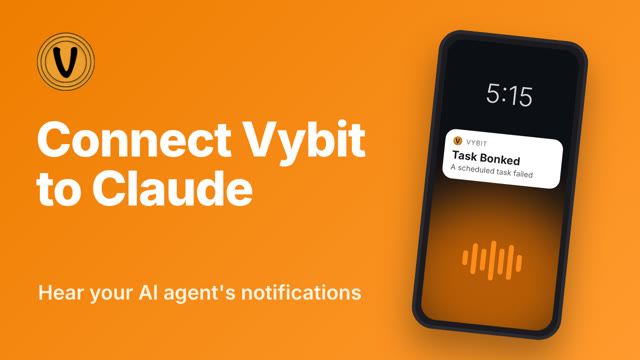 Watch the 4-minute walkthrough
- Open Plugins in the ChatGPT sidebar (or go to chatgpt.com/plugins)
- Search for Vybit and select it
- Click Install plugin, then Connect if asked
- Sign in to your Vybit account and click Allow
- In any chat, ask about your vybits, or type @ and select Vybit
Muse (muse.ai / Muse app)
- Open a Muse chat and paste the setup prompt below
- Get your developer API key from the Developer API section at developer.vybit.net
- Muse will reply with a secure connect link. Enter your API key there (never paste it in chat)
- Once connected, ask Muse to manage your vybits in plain language
Connect my Vybit account to Muse using my Vybit developer API key.

1. Set up a custom connector to Vybit: API host api.vybit.net,
   authenticating with my developer API key in the X-API-Key header.
   (The hosted MCP server is at https://api.vybit.net/v1/mcp and the
   REST API is at https://api.vybit.net/v1. The key works for both.)
2. I get my key from the Developer API section at developer.vybit.net.
   If you need me to enter it, send your secure connect link. I won't
   paste the key in chat.
3. Once connected, verify with a live call (account profile or API status).
4. Save it as a reusable skill so you can manage my Vybit notifications
   from any future conversation: list, create, update, and delete vybits;
   trigger notifications; create, list, update, and delete reminders;
   browse sounds; and view logs.
Once connected, try asking your AI assistant things like "show me my vybits", "create a vybit called Morning Alarm", or "trigger my Server Alert with message CPU at 95%".
For the web app, you can mute/unmute the Vybit tab in the browser. For devices the Vybit alerts are handled by the notification service of the device and thus follow the cues from the hardware mute switch and the do-not-disturb mode of the device.
Probably due to the "no autoplay" policy now used by most browsers. Chrome, for example, requires that the user interact with the website before it allows the site to play any sounds. Clicking anywhere on the site after you open a tab to Vybit will do the trick, incoming vybits will then be heard. You can permanently allow sound in Chrome under Settings -> Privacy and Security -> Site Settings -> Vybit -> Sound: Allow. For Safari, you need to play one of the sounds (click
) after loading the site and then subsequent Vybits will be heard, or you can click "Safari" -> "Settings for this Website" and toggle "auto-play" to "allow auto-play".For the most reliable browser experience, install the Vybit Chrome extension, which handles sound playback without autoplay restrictions.
Mobile browsers are even more restricted for autoplay, so for devices download and use the mobile app instead.
This can happen if you changed the Vybit sound on another device or computer or the sound was changed for a Vybit you are following. Open the Vybit app and this will automatically update the sound. The Vybit will play the correct sound going forward. The ability for Vybit to update changed sounds in the background is in development.
Copy and paste the Sign In link URL from the email into the provided form field in the IFTTT app. Other alternatives include 1) from within the IFTTT app use one of the other Vybit login options, 2) sign In to IFTTT on the web and connect to Vybit using the email link option from there. 3) Or if you are still having problems connecting IFTTT and Vybit from a mobile browser use a desktop browser instead.
If you land on a blank page after signing in click "Done" in the top left to continue back to the app. For Apple iOS devices if you land on a page with an error message saying "Unable to process request . . ." try temporarily turning off Settings -> Safari -> Prevent Cross-site Tracking in the device settings and retry the Sign In. Please contact support@vybit.net if the problem persists.
Managers and seats. A manager seat is for someone who helps run the account. Every plan includes manager seats: 1 on Free, 3 on Pro, 20 on Team, and 100 on Business. Seats count the managers you invite, not you, and they are included in the plan price. People who only need to hear your vybits do not need a seat: they subscribe from their own free account, and there is no limit on subscribers.
Inviting managers. Open your PROFILE page, expand the ORGANIZATION section, and send an invitation to the new manager's email address. They accept from the MANAGED ORGS section of their own PROFILE page. Everyone signs in with their own Vybit account. There are no shared credentials.
Managing the account. A manager selects MANAGE beside the organization in their MANAGED ORGS section to switch into it. While managing, the Vybits, logs and sounds they see belong to the organization, and a banner across the top shows which account they are managing. Selecting "switch back" returns them to their own account. Managers can create, edit, and delete the organization's Vybits, but cannot change its profile, plan, billing, or list of managers. Those remain with the account owner.
Notifications. Managing an organization is separate from subscribing to it. Managers choose which of the organization's Vybits they want to hear, and they receive those notifications on their own account whether or not they are currently managing it. Once you invite your first manager, two vybits are created automatically: a group vybit that every manager is subscribed to and can send to, and a manager events vybit that only the owner receives.
Developer portal access. The developer portal holds real credentials for the account: its API key, OAuth client secret, and webhook signing secret. Being a manager does not open it on its own. The owner grants access per manager, either when sending the invitation or from the checkbox beside a manager in the ORGANIZATION section, and can withdraw it at any time. Withdrawing takes effect on the manager's next request. Connecting third-party services to the account stays with the owner in every case. Note that a credential a manager has already seen keeps working after their access ends, so rotate the API key and secrets from the developer portal if someone leaves and that matters to you.
A manager who has been granted access reaches the portal the same way the owner does, at developer.vybit.net: they sign in with their own account, switch to the organization there, and the </> DEV link then shows the organization's credentials rather than their own. Switching is per site, so managing the organization on the main site does not switch them on the developer site.
Manager events. The manager events vybit is the owner's record of what happens to the organization: invitations sent, accepted, and declined, managers removed or leaving, developer portal access granted or withdrawn, and every change made in the developer portal. Each notification names who did it, and never contains a key or secret itself. No managers are subscribed to it, though the owner can share it like any other vybit.
Leaving and removing. An owner can remove a manager at any time from the ORGANIZATION section, and a manager can remove themselves from the MANAGED ORGS section. Either way, management access ends immediately and subscriptions to the organization's private Vybits are removed.
Need more than 100 manager seats, or a bigger notification pool? Contact plans@vybit.net.
Free
For one person trying it out, or a few personal alerts.
1,500 notifications per month
up to 100 in a day
Unlimited subscribers
10 vybits
1 manager seat
Example: about 45 alerts a day, just to you.
$0
Pro
For a solo operator or a small crew: every sale, lead, or alert, heard.
3,000 notifications per month
up to 1,000 in a day
Unlimited subscribers
20 vybits
3 manager seats
Example: about 10 alerts a day to a team of 9, you included.
$6/month or $60/year
Team
For support, sales, and ops teams: one alert, heard by everyone who subscribes.
15,000 notifications per month
up to 5,000 in a day
Unlimited subscribers
50 vybits
20 manager seats
Example: about 20 alerts a day to a team of 24, you included.
$29/month or $290/year
Business
For companies that run on alerts, or that alert their own clients. The biggest pool.
50,000 notifications per month
up to 15,000 in a day
Unlimited subscribers
100 vybits
100 manager seats
Priority support
Example: about 40 alerts a day to 40 people, or one alarm a day to 1,600 clients.
$79/month or $790/year
Need more?
A bigger notification pool, or more than 100 manager seats.
Contact plans@vybit.net.
No. Manager seats are for the people who help run your account. Anyone who only needs to hear a vybit subscribes to it from their own free Vybit account. There is no limit on subscribers and no charge per person.
One notification is one vybit reaching one person, on all of their devices. A vybit sent to you and 19 subscribers counts as 20 toward your plan's monthly pool. Receiving is always free. If an account uses its whole pool, notifications pause until the monthly reset or until the plan is upgraded. Paid plans also have a daily safety limit, set well above normal use, so a runaway automation cannot spend the month in a day.
Integrations with other platforms are in the works. In the meantime Vybit can easily be used with any integration service that has an outgoing webhooks action channel including these:
For you system administrators and developers Vybit can easily be integrated into your own platform and app notification services. Simply issue an https GET or POST request to the TRIGGER URI of the Vybit in the event logic. See the "Triggering Vybits" section above for more details.
Current service health and uptime history for the Vybit platform are always available on our status page at status.vybit.net.
The portal provides:
- API Key – authenticate requests to the Vybit Developer REST API
- OAuth2 – self-service registration so your users can connect their Vybit accounts to your service
- Outbound Webhooks – receive a POST request whenever any of your vybits are triggered, with a payload matching the API log record format
- MCP Server – connect AI assistants like Claude and ChatGPT directly to Vybit
- @vybit/api-sdk – TypeScript/JavaScript SDK for the Vybit Developer REST API
- @vybit/oauth2-sdk – OAuth2 SDK for user-facing applications and service integrations
- @vybit/mcp-server – Model Context Protocol server for AI assistants (local installation)
- @vybit/cli – Command-line interface with structured JSON output for scripting and automation
- @vybit/n8n-nodes-vybit – Community nodes for the n8n workflow automation platform