
Stripe will email you about payments, and the Stripe app can push a notification, but that reaches whoever is signed in to the dashboard and sounds like everything else on the phone. A failed payment is worse: it sits quietly in a list until someone goes looking, and by then the customer has gone.
You can fix both with two vybits and Stripe's own webhook settings. No Zap, no code, no server. Here is what it sounds like.

What you will hear
A cash register on every subscribed phone the moment a payment succeeds, reading "New Stripe payment". A car horn the moment one fails, reading "A Stripe payment failed". Two different sounds, so the whole team knows which one it is without picking up the phone. Pick any sounds you like, or record your own.
Step 1: make two vybits
- Sign in to Vybit and create a vybit called "Payment received". Set the default message to "New Stripe payment" and choose a cash register sound.
- Create a second vybit called "Payment failed", with the default message "A Stripe payment failed" and a sound nobody will mistake for good news (a horn works well).
- Leave the trigger type of both as Webhook.
- Copy each vybit's trigger URL. It looks like
https://vybit.net/trigger/abc123xyz. - Share each vybit with your team. New vybits start out private, so either invite people by email (open the vybit, click PEEPS, enter their email and click INVITE), or set the vybit's subscription access to unlisted and share its subscribe link. Everyone who should hear payments signs in with a free Vybit account and subscribes. The failed-payment vybit might go to fewer people: whoever follows up with customers.
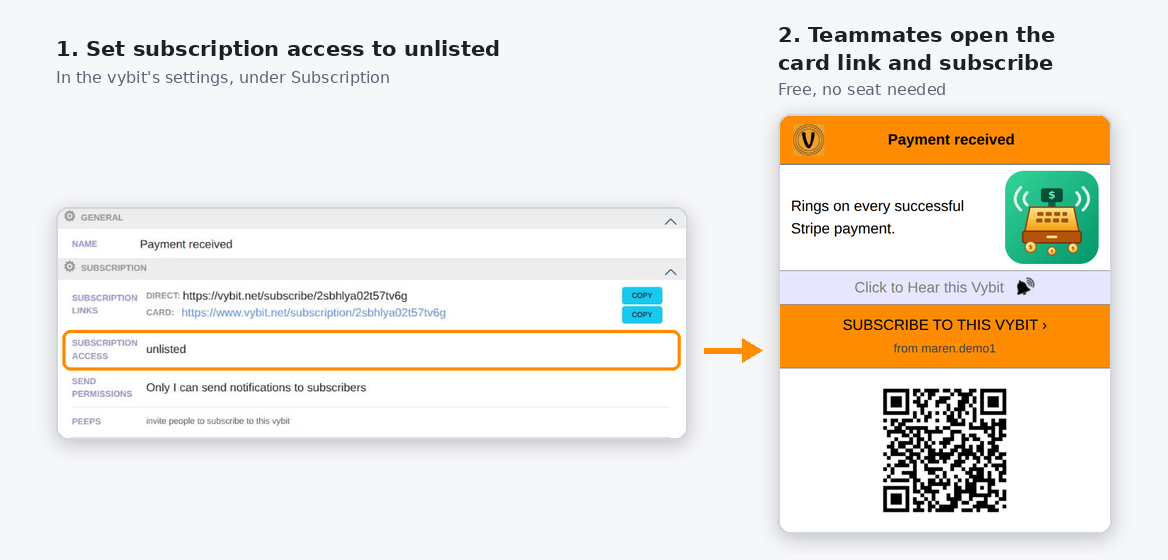
That card belongs to a real demo vybit, so go ahead and scan the code to see what subscribing looks like. The vybit is switched off and we never send to it.
Step 2: point Stripe at them (Stripe's own settings)
Menu path checked November 8, 2026, in the Stripe Dashboard.
- In the Stripe Dashboard, open Workbench and go to the Webhooks tab.
- Click Add destination.
- Keep Your account selected, leave the payload style on Snapshot, and keep the suggested API version.
- Under Events, search for payment_intent.succeeded, tick it, then click Continue.
- Choose Webhook endpoint and click Continue.
- Name the destination (for example "Vybit cash register"), paste the "Payment received" trigger URL as the Endpoint URL, and add a description if you like.
- Click Create destination.
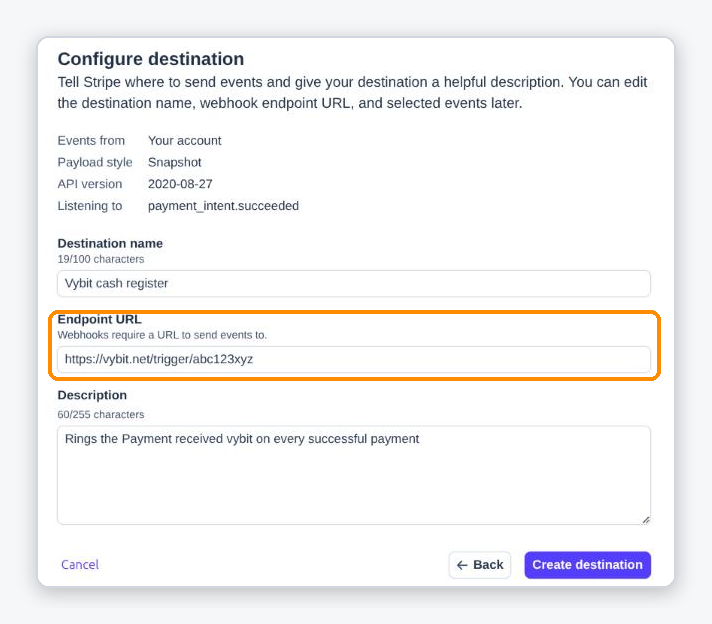
Then do it once more for the horn: a second destination with the event payment_intent.payment_failed and the "Payment failed" trigger URL.
That covers Checkout, Payment Links, invoices and subscription renewals, because all of them take the money through a payment intent.
A few things worth knowing:
- Try it in test mode first. Build the two destinations in a sandbox or test mode, pay with Stripe's test card 4242 4242 4242 4242 to hear the register, and with the declining test card 4000 0000 0000 0002 to hear the horn. Or skip the test cards: open each test destination in Workbench, click Send events, and pick its event (payment_intent.succeeded for the register, payment_intent.payment_failed for the horn). Stripe sends a sample event straight to the trigger URL. Then create the same two destinations in live mode. Test and live destinations are separate, so nothing rings for real payments until you add the live ones.
- Vybit uses its default message. Stripe sends the whole event to the trigger URL. Vybit rings the vybit with its default message and does not read the amount out of a Stripe event. If you want "Payment: $49.00" on the lock screen, use the automation-platform variant below.
- Stripe's signature is not needed. Stripe signs every event; the trigger URL does not check signatures, so there is nothing to configure. Keep each trigger URL private, since anyone who has it can ring that vybit.
- Turning a vybit off is safe. Stripe still gets a success reply and nothing rings. If you delete a vybit instead, Stripe sees errors, retries for a while, and may eventually disable the destination and email you about it. You can see every attempt under the destination's Event deliveries tab.
Step 1 and 2, the AI way: copy this prompt
If your AI assistant is connected to the Vybit MCP server (https://api.vybit.net/v1/mcp; setup steps for Claude, ChatGPT, Gemini, Grok, Mistral Vibe, Perplexity and Muse in our AI assistant guide), paste this into a new chat and change the parts in brackets:
Use my Vybit connector to set up payment alerts for my Stripe account.

1. Create a private vybit called "[Payment received]" with the default
   message "[New Stripe payment]". Search the Vybit sounds for
   "cash register", show me the three best matches with their play
   links, and use the one I pick.
2. Create a private vybit called "[Payment failed]" with the default
   message "[A Stripe payment failed]". Search the sounds for "horn"
   and let me pick again.
3. Invite these people to subscribe to "Payment received" by email:
   [alex@example.com, sam@example.com]
   and only these to "Payment failed": [sam@example.com]
4. Give me each vybit's trigger URL (https://vybit.net/trigger/
   followed by its trigger key) so I can paste them into Stripe.
5. Send one test of each with the message "Test: if you heard this,
   payment alerts work".
Then paste the two trigger URLs into Stripe as in Step 2. Your assistant handles the Vybit side; the two Stripe destinations take a minute in the Dashboard.
Variant: put the amount in the notification
If you want the amount and customer on the lock screen, or a grander sound for big payments, route the event through an automation platform. Vybit is an official app on Zapier, Make and IFTTT, with a verified community node for n8n.
- Start from the platform's Stripe trigger for a new payment (or a failed one).
- Add the Vybit action that triggers your vybit, and fill the message from the payment, for example "Payment: {{amount}} {{currency}}".
- Stripe reports amounts in the smallest unit (cents for dollars), so 4900 means $49.00. Most platforms have a formatter step to divide by 100.
- Add a filter on the amount if you want a separate fanfare vybit for big payments. Our post A Grander Bell for a Bigger Sale walks through that pattern step by step.
If you post to a trigger URL yourself, a JSON body with a message field, such as {"message": "Payment: $49.00"}, replaces the default message for that one alert.
How counting works
One notification is one vybit reaching one person, on all of their devices, and that includes you. A payment that rings you and 4 teammates uses 5 notifications. Subscribers are free and unlimited; nobody needs a seat to listen.
Some realistic businesses:
- Just you, about 30 payments a day: 30 x 1 x 31 = 930 notifications a month.
- You and 4 teammates, about 15 payments a day, with failed payments (about 1 a day) going to 2 of you: (15 x 5 + 1 x 2) x 31 = 2,387 a month.
- A team of 8, about 50 payments a day: 50 x 8 x 31 = 12,400 a month.
Which plan fits
- Free fits a solo business: 1,500 notifications a month, up to 100 in a day.
- Pro fits you and 4 teammates: 3,000 notifications a month and 3 manager seats.
- Team fits the team of 8 doing 50 payments a day: 15,000 notifications a month and 20 manager seats.
Manager seats are only for people who help you run the account. Everyone who just needs to hear the register subscribes for free. The pricing page has the full comparison, and if you need more than Business offers, write to plans@vybit.net.