
A new lead fills in your contact form, the form sends an email, and the email lands in a shared inbox next to forty newsletters. The fastest reply usually wins the deal, and nobody on the team knew the lead was there.
You can give every new lead its own sound on everyone's phone. The simplest version needs nothing but your own web form and one vybit.
What you will hear
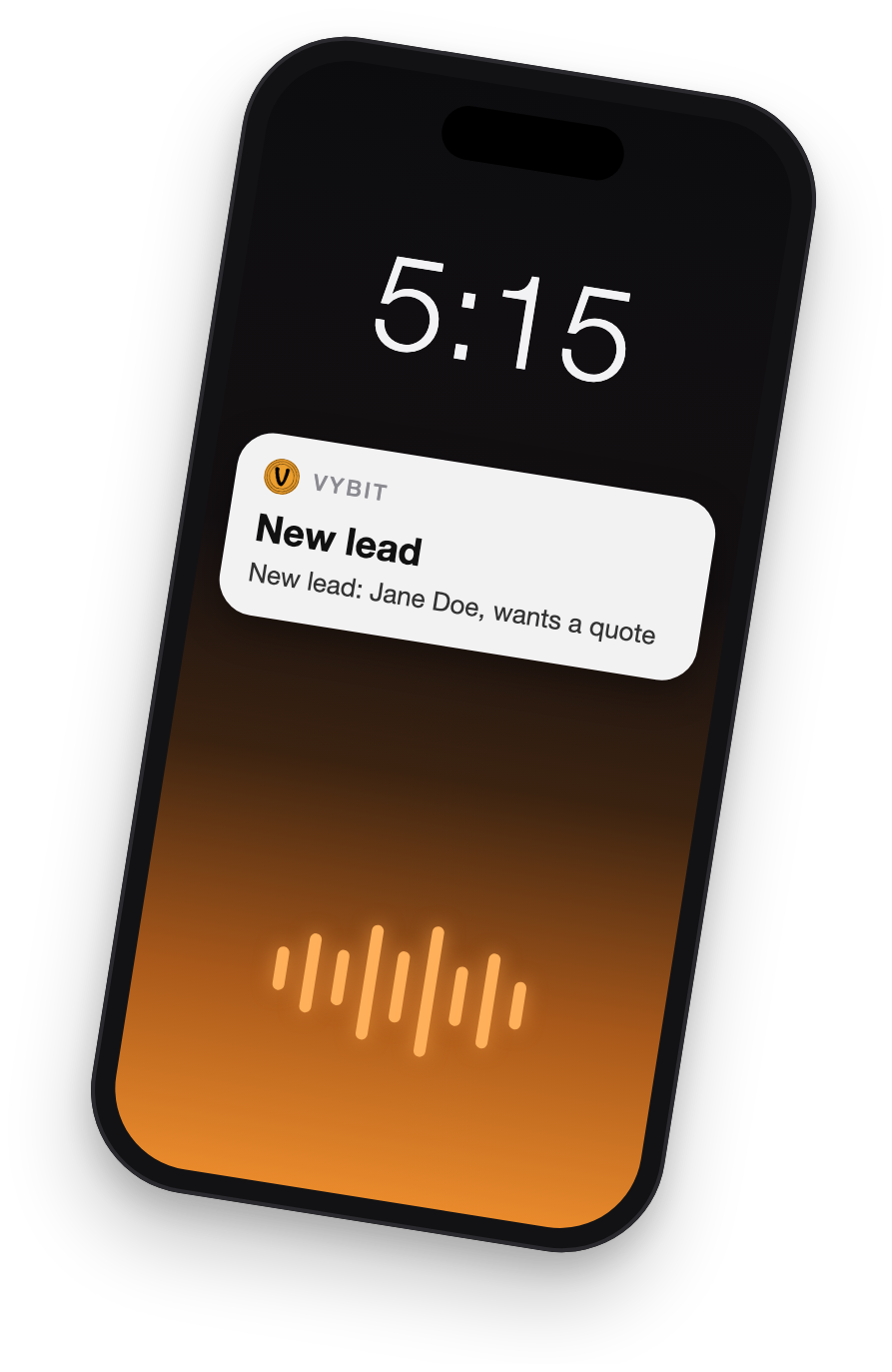
A ship's bell (or any sound you choose or record) on every phone subscribed to the vybit, the moment someone submits your form. The lock screen shows who it is, for example "New lead: Jane Doe, wants a quote". The whole sales floor hears the same bell, so whoever is free grabs it.
Step 1: make the vybit
- Sign in to Vybit and create a vybit called "New lead". Set the default message to "New lead from the website" and pick a sound your team will learn fast.
- Leave the trigger type as Webhook.
- Copy the vybit's trigger URL. It looks like
https://vybit.net/trigger/abc123xyz. - Share the vybit's subscribe link with your sales team. Each person signs in with a free Vybit account and subscribes. Listening is free; nobody needs a manager seat to hear the bell.
Step 2: ring it from your website's form
If your site has an HTML form, add a few lines of script so the form also sends one alert to the trigger URL. The trigger URL accepts a normal form post or JSON, and a field called message becomes the text on the lock screen.
Here is a complete example. Replace the trigger URL with yours, and keep whatever your form already does.
<form id="lead-form">
  <input name="name" placeholder="Your name" required>
  <input name="email" type="email" placeholder="Email" required>
  <textarea name="note" placeholder="What can we help with?"></textarea>
  <button type="submit">Send</button>
</form>

<script>
  document.getElementById("lead-form").addEventListener("submit", function (e) {
    e.preventDefault();
    var f = e.target;
    var text = "New lead: " + f.elements["name"].value +
      " (" + f.elements["email"].value + ")";
    fetch("https://vybit.net/trigger/abc123xyz", {
      method: "POST",
      headers: { "Content-Type": "application/json" },
      body: JSON.stringify({ message: text.slice(0, 200) })
    }).finally(function () {
      f.reset();
      alert("Thanks, we will be in touch shortly.");
    });
  });
</script>
A few things worth knowing:
- No server needed. The trigger URL allows calls from any website, so this runs straight from the visitor's browser.
- Keep the alert short. Put the name and one detail in the message. The full lead still goes wherever your form sends it today (your inbox or CRM); the vybit is the bell, not the record.
- The URL is visible in your page source. Anyone who reads it could ring your vybit. For most small sites that is fine. If spam becomes a problem, turn the vybit off for a while (nothing rings and the form still works), or send the alert from your form service's webhook setting instead, so the trigger URL never appears in the page.
- Form builders work too. Many form tools have a "webhook on submission" setting. Paste the trigger URL there. If the tool lets you choose the fields it sends, send one called
message; otherwise the vybit rings with its default message.
HubSpot and Freshdesk: their own webhook settings
These two paths are written from each tool's own documentation (checked October 20, 2026). We have not run them end to end yet, so check the first alert before you rely on it.
HubSpot (the "Send a webhook" workflow action needs Data Hub Professional or Enterprise):
- Go to Automation > Workflows and create a contact-based workflow that enrolls contacts when, for example, a form is submitted or the lifecycle stage becomes Lead.
- Click the + icon to add an action and choose Send a webhook under Data ops.
- Choose POST and paste your trigger URL.
- Select Customize request body and add one static value named
message, such as "New HubSpot lead". Without it, HubSpot sends the whole contact record and the vybit rings with its default message. - Save the action and turn the workflow on.
Freshdesk (for leads that arrive as tickets, such as a "Talk to sales" form or email address):
- Go to Admin > Workflows > Automations (in Freshdesk Omni: Admin Settings > Configuration and Workflows > Ticket Automations).
- On the Ticket Creation tab, click New Rule and add a condition that matches your sales tickets, for example the group or the email address they arrive at.
- Under actions, choose Trigger webhook, set the request type to POST and paste your trigger URL.
- Choose JSON encoding and Advanced Content, and enter a body such as
{"message": "New sales ticket: {{ticket.subject}}"}using Freshdesk's placeholder for the subject. - Click Preview and Save, then turn the rule on.
Webhook actions in both tools depend on your plan, so check yours before you start.
Step 1 and 2, the AI way: copy this prompt
If your AI assistant is connected to the Vybit MCP server (https://api.vybit.net/v1/mcp; setup steps in our AI assistant guide), paste this into a new chat and change the parts in brackets:
Use my Vybit connector to set up a new-lead alert for my sales team.

1. Create a private vybit called "[New lead]" with the default message
   "[New lead from the website]". Search the Vybit sounds for "bell",
   show me the three best matches with their play links, and use the
   one I pick.
2. Invite these people to subscribe by email:
   [alex@example.com, sam@example.com, priya@example.com]
3. Give me the vybit's trigger URL (https://vybit.net/trigger/ followed
   by its trigger key).
4. Write the script for my contact form so each submission also posts
   {"message": "New lead: <name> (<email>)"} to that trigger URL. My
   form's fields are named [name] and [email].
5. Send one test with the message "Test: if you heard this, lead
   alerts work".
Your assistant sets up the Vybit side and hands you the form script; you paste it into your site.
Variant: an automation platform
If your leads already flow through Zapier, Make, IFTTT or n8n, add the Vybit action to that flow instead. Vybit is an official app on Zapier, Make and IFTTT, with a community node for n8n.
- Start from your lead source's trigger (a new form submission, a new CRM contact, a new ticket).
- Add the Vybit action that triggers your vybit, and fill the message from the lead, for example "New lead: {{name}}, {{company}}".
- Add a filter if only some leads should ring, such as a minimum deal size or one region.
How counting works
One notification is one vybit reaching one person, on all of their devices. A lead that rings 5 people on the sales floor uses 5 notifications. Subscribers are free and unlimited.
Some realistic teams:
- Just you, about 5 leads a day: 5 x 1 x 31 = 155 notifications a month.
- A sales team of 5, about 10 leads a day: 10 x 5 x 31 = 1,550 a month.
- A sales floor of 12, about 25 leads a day: 25 x 12 x 31 = 9,300 a month.
Which plan fits
- Free fits a solo founder: 1,500 notifications a month, up to 100 in a day.
- Pro fits the sales team of 5: 3,000 notifications a month and 3 manager seats.
- Team fits the sales floor of 12: 15,000 notifications a month and 20 manager seats.
Manager seats are only for people who help you run the account. Everyone who just needs to hear the bell subscribes for free. The pricing page has the full comparison, and if you need more than Business offers, write to plans@vybit.net.