
Your monitoring tool already knows the moment your site goes down. It tells you with an email or a chat message, and on a busy afternoon (or a quiet Sunday) that message sits unread until a customer writes in to ask why checkout is broken.
You can give "site down" its own sound on everyone's phone, so the whole team hears it at once. Most monitoring tools can do this with their own webhook setting and one vybit, no extra service in between.
What you will hear
A siren (or any sound you choose) on every phone subscribed to the vybit, the moment your monitor marks the site down. The lock screen says what broke, for example "[Shop] [🔴 Down] connect ECONNREFUSED". When the site comes back you hear it again with "[✅ Up]", so nobody has to ask whether it is fixed.
Step 1: make the vybit
- Sign in to Vybit and create a vybit called "Site down". Set the default message to "A monitored site changed status" and pick a sound nobody will mistake for a text message. A siren works.
- Leave the trigger type as Webhook.
- Copy the vybit's trigger URL. It looks like
https://vybit.net/trigger/abc123xyz. - New vybits are private. To let your team hear it, open the vybit, go to PEEPS and invite them by email (or set access to unlisted and share its subscribe link). Each person signs in with a free Vybit account. Listening is free; nobody needs a manager seat to hear the siren.
Step 2: Uptime Kuma (tested)
Uptime Kuma is free, self-hosted, and has a built-in webhook notification. We ran this exact setup on Uptime Kuma 2.5.6 on October 22, 2026: we stopped a test site, heard the siren with the "Down" message, started it again, and heard the "Up" message.
-
In Uptime Kuma, go to Settings > Notifications and click Set Up Notification.
-
Set Notification Type to Webhook and give it a Friendly Name such as "Vybit".
-
Paste your trigger URL into Post URL and leave HTTP Method on POST.
-
Set Request Body to Custom Body and paste:
{"message": {{ msg | json }}}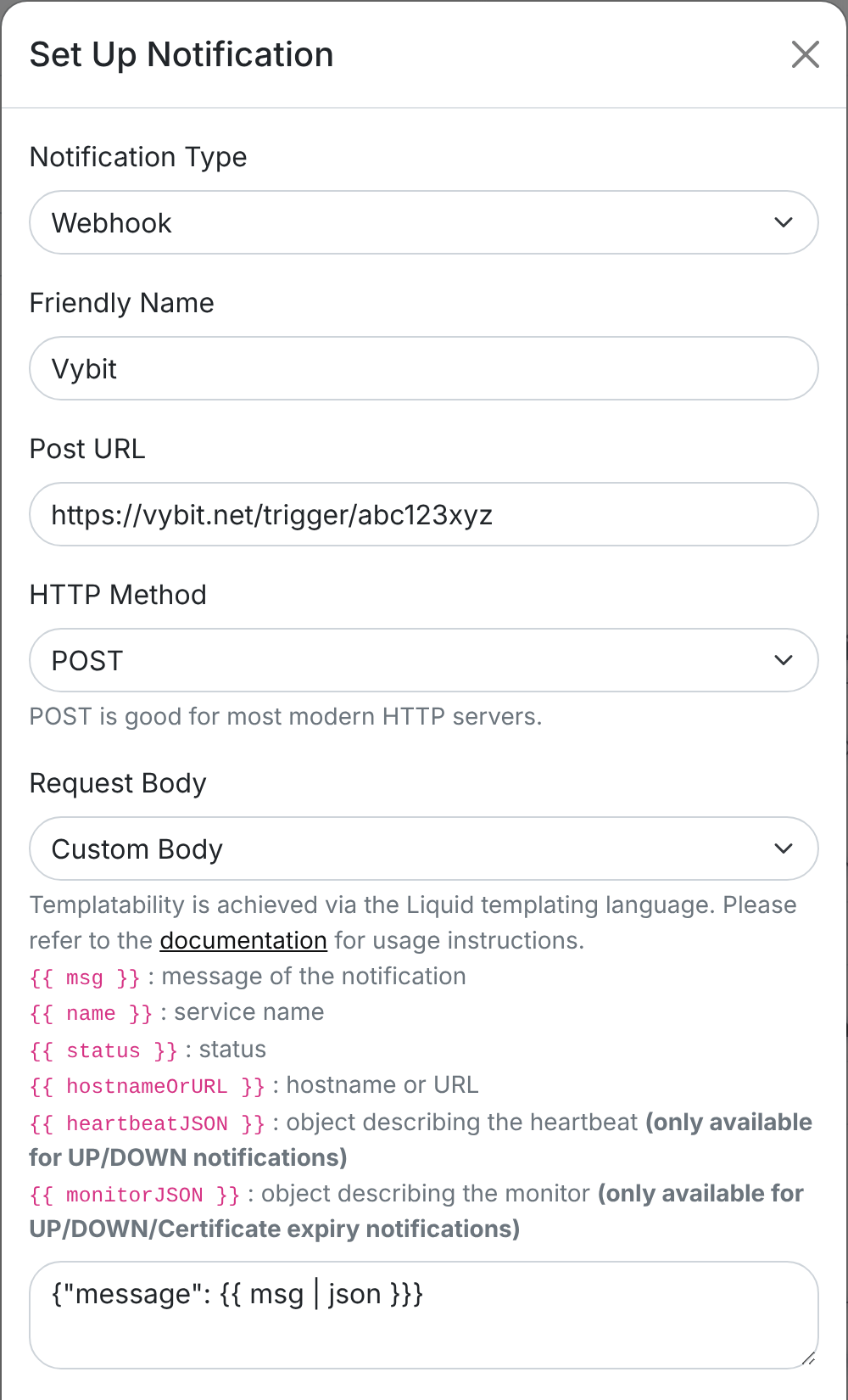
-
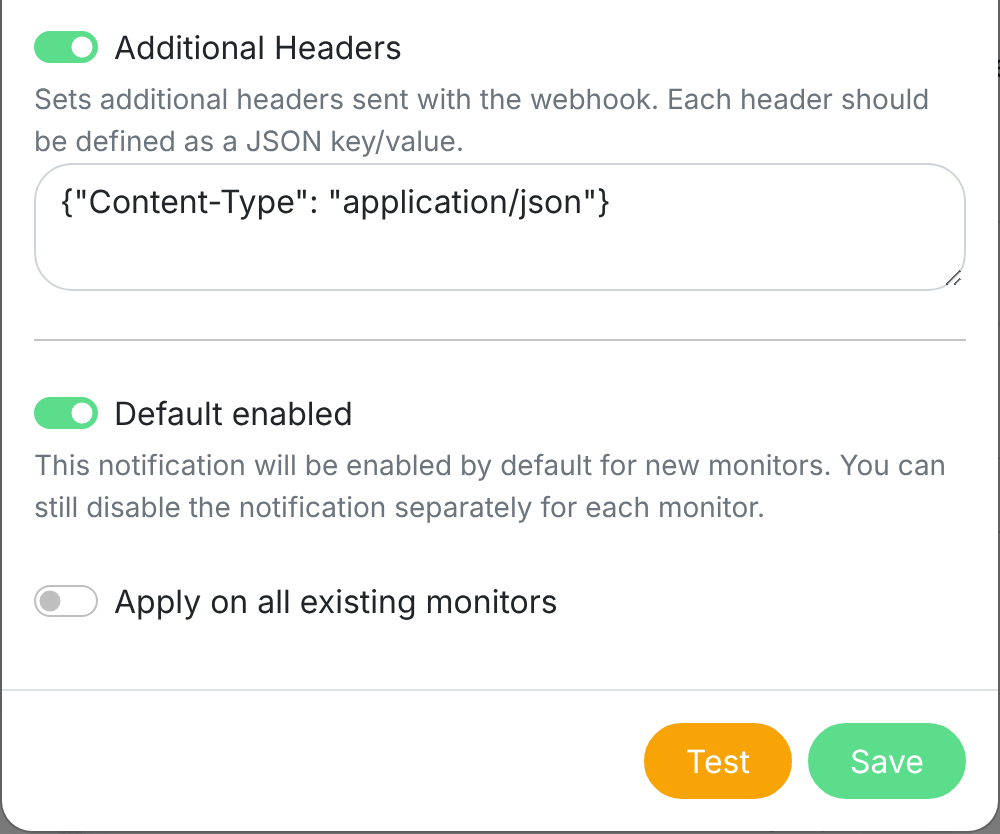
Turn on Additional Headers and paste:
{"Content-Type": "application/json"} -
Click Test. Your phone should play the siren with "Vybit Testing".
-
Tick Default enabled so new monitors use it, and Apply on all existing monitors if you want every current monitor to ring too. Click Save.
Two things we learned while testing:
- Do not skip the header in step 5. Without it, Uptime Kuma sends the custom body as a form post, Vybit cannot find the message, and you hear the siren with the default text instead of what broke.
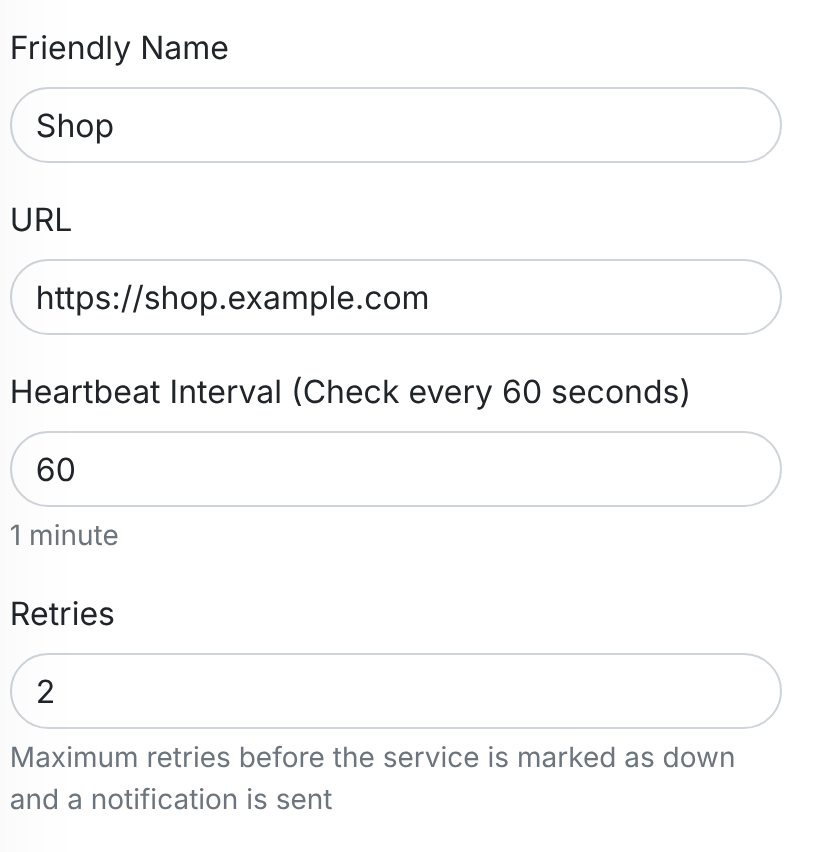
- Avoid false alarms with retries. In each monitor, set Retries to 1 or 2. Uptime Kuma then checks again before it declares the site down, so a single slow response does not wake the team.
Better Stack and Grafana: their own webhook settings
These two are written from each tool's own documentation (checked October 22, 2026). We have not run them end to end yet, so check the first alert before you rely on it.
Better Stack (outgoing incident webhooks):
- Go to Incidents > Integrations > Exporting data and find Outgoing webhooks.
- Click Configure, then Add on the Incident webhook card.
- Paste your trigger URL as the Webhook URL and choose which events should ring (for example only when an incident starts).
- If you customize the request template, include a field called
message, such as{"message": "Better Stack incident"}. Otherwise the vybit rings with its default message, which is fine for a team that just needs to know to look.
Grafana (alerting contact points):
- Go to Alerts & IRM > Alerting > Notification configuration > Contact points and click + Add contact point.
- Name it "Vybit", choose Webhook as the integration, paste your trigger URL into URL, and click Save contact point.
- Point a notification policy (or a single alert rule) at the new contact point.
Grafana's standard webhook already includes a message field, so no template is needed. We sent a Grafana-shaped alert to a test vybit and it rang with Grafana's own summary ("Firing", the alert name and labels). If you want a shorter lock screen line, Grafana's optional Custom Payload setting can send just a message you write (Grafana notes it is not yet generally available in Grafana Cloud).
Step 1 and 2, the AI way: copy this prompt
If your AI assistant is connected to the Vybit MCP server (https://api.vybit.net/v1/mcp; setup steps in our AI assistant guide), paste this into a new chat and change the parts in brackets:
Use my Vybit connector to set up a site-down alert for my team.

1. Create a private vybit called "[Site down]" with the default message
   "[A monitored site changed status]". Search the Vybit sounds for
   "siren", show me the three best matches with their play links, and
   use the one I pick.
2. Invite these people to subscribe by email:
   [alex@example.com, sam@example.com, priya@example.com]
3. Give me the vybit's trigger URL (https://vybit.net/trigger/ followed
   by its trigger key).
4. Tell me exactly what to enter in [Uptime Kuma / Better Stack /
   Grafana] so it posts {"message": "<what went down>"} to that URL
   when a monitor goes down, including any header it needs.
5. Send one test with the message "Test: if you heard this, site-down
   alerts work".
Your assistant sets up the Vybit side and tells you what to paste into your monitoring tool.
Variant: an automation platform
If your monitoring alerts already go through Zapier, Make, IFTTT or n8n, add the Vybit action to that flow instead. Vybit is an official app on Zapier, Make and IFTTT, with a community node for n8n.
- Start from your monitor's trigger (a new incident, a status change, an incoming webhook).
- Add the Vybit action that triggers your vybit, and fill the message from the alert, for example "Down: {{monitor_name}}".
- Add a filter if only some monitors should wake the team, such as production sites only.
How counting works
One notification is one vybit reaching one person, on all of their devices. A site going down rings everyone subscribed, and coming back up rings them again, so one outage for a team of 5 uses 10 notifications. Subscribers are free and unlimited.
Some realistic teams:
- Just you, watching a few sites, about 10 status changes a month: 10 x 1 = 10 notifications a month.
- A team of 6 with 20 monitors, about 40 status changes a month: 40 x 6 = 240 a month.
- An agency of 15 watching 150 client sites, about 4 status changes a day: 4 x 15 x 31 = 1,860 a month.
Which plan fits
- Free fits the solo case and the team of 6: 1,500 notifications a month, up to 100 in a day.
- Pro fits the agency of 15: 3,000 notifications a month and 3 manager seats.
- Team fits bigger operations with noisier monitors: 15,000 notifications a month and 20 manager seats.
Manager seats are only for people who help you run the account. Everyone who just needs to hear the siren subscribes for free. The pricing page has the full comparison, and if you need more than Business offers, write to plans@vybit.net.